
 [8]
[8]The Shared View feature provides account holders with a much more intuitive means of sharing data with non-portal users. Giving the account holder the ability to limit the visibility of data to specified Assets, Places, Geofences, Drivers, and date ranges, Shared Views provide complete control over information sharing.
Many of our clients use (or in the case of future clients, intend to use) GSatTrack to produce reports and otherwise send information from the portal to third parties like their clients, regulatory groups, and insurance companies. The primary solution goals for Shared Views were to make the process of externalizing data more streamlined, to allow the data to be viewed in the map interface instead of a spreadsheet, and to accommodate current and future clients whose uses of telematics systems includes a need to satisfy regulatory logging requirements, or to otherwise demonstrate verifiable accountability.
At its core, GSatTrack is an information ecosystem, and one of the primary means of interacting with the platform is using it to deliver data to the people who need and want to see it. While reporting features have given users the ability to export a data visualization as a spreadsheet, showing the data in the map view has been less intuitive to this point. Because we’ve noticed that more and more of our clients have been wanting the ability to make the map visualization interface more available publicly, or to extra-organizational parties, we’ve developed the Shared Views feature set to improve upon our Anonymous User feature.
Shared Views were designed to give account holders complete control of the assets and data that they share with external parties, with emphasis on making the sharing and viewing of shared data more intuitive. Shared Views also made easier the sharing of an asset’s position report history on social media, which is a boon to adventure products.
To create a Shared View, click the Add Item (+) button from the main navigation panel, then select Add Shared View. A form will open in the main viewport, prompting users for the following information:
As part of creating a Shared View, users will be prompted to set preferences and add Assets, Groups, Geofences, Places, and Drivers to them. Those chosen will be the only ones viewers will be able to see and interact with in the Shared View, limiting access by selection. In setting this up, users will move through 6 tabs, prompted to make the following choices.
Other Tabs: limit display by selection, Assets, Groups, Geofences, Places, and Drivers must be manually added to the Shared View. Shared views can be created with nothing included in them, and they will display no data until users manually add any number of entities from the 5 options listed above. Any number of each can be added to the Shared View.
Once created, Shared Views can be found in a list by visiting the Config tab from the main navigation panel and selecting the Settings option. Each Shared View users have created will be visible in list format, with quick options to edit, delete, share, and view statistics. When editing a Shared View, users can alter any characteristic or parameter set when it was created. The Edit interface is in fact the same as the create interface, with the selected Shared View parameters pre-filled. Once edited, the most recent update timestamp will appear on the green bar at the bottom of any Shared View so people viewing the Shared View are aware of when parameters have changed.
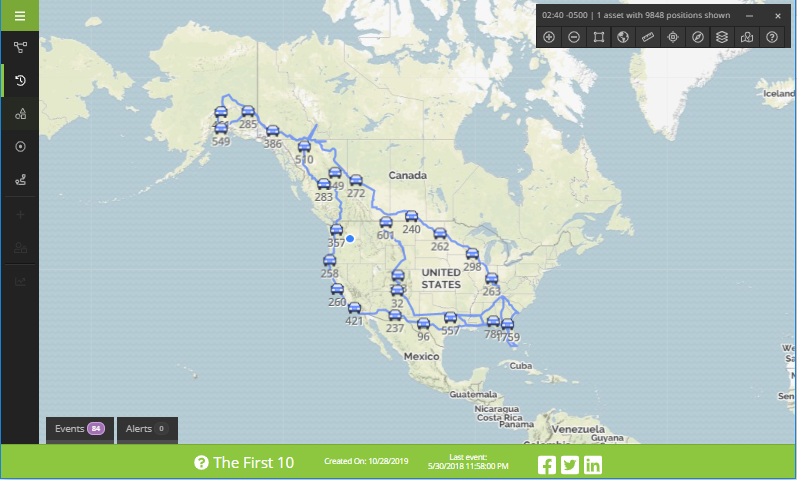
Anyone with a link can visit a Public shared view, and anyone with a link and a password can visit a Private shared view; neither requires the viewer to have an account. Once the link has been followed, viewers will see a visually identical interface to that which primary users have access to, except with the viewing restrictions set by the Shared View’s date range and asset inclusions. Viewers can move between Live, History, Places, and other menu items just as regular users, and can interact with the position history of assets in the exact same way. Viewers will see alerts, status reports, and other events for the assets they’re permitted to view, as well as messaging history (if enabled).
Once created, Shared Views can be found in a list by visiting the Config tab from the main navigation panel and selecting the Settings option. One of the options in this list view for each Shared View is a button (represented by a pie chart symbol) to view the statistics of the Shared View. The Statistics view shows the name; status; creation, update, expiration, and last visit dates; visibility; visitor details, and visitor log.
The Visitor Details chart is a line graph showing the number of visits by date, and can be exported from the portal in JPG, PNG, SVG, and PDF formats. It can also be printed directly from the interface, and each of these export options is available in the burger menu to the right of the Visitor Details header. The Visitor Log displays and is sortable by the Name, Number of Visits, and Date of Last Visit for each uniquely identifiable visitor.